Pricing Formulas and Automatic Inventory Price Updates
Pricing a few lots by hand is manageable. Keeping a whole store priced the way you want takes more work, especially when used parts and new sets need different rules.
Brick Order Picker now lets you save those rules as pricing formulas. The new Update Prices tool applies them to existing inventory, either as a one-time update or on a weekly schedule.
Set your rules once
Open Settings → Pricing formulas to choose a default formula. That rule applies across your inventory unless you give a particular item type and condition its own formula.
You can set different rules for new and used parts, sets, minifigures, gear, and instructions. For example, you might price used parts at the six-month sold average and new sets at 110% of that average. Changing your default updates the combinations that still use it; your custom overrides keep their own rules.
The simple editor lets you choose the six-month sold average or the current for-sale average, apply a percentage, add or subtract a fixed amount, and set a minimum price. The preview shows what your formula would produce before you save it.
If you need more control, the advanced editor supports expressions. This one uses the current for-sale average when the sold average is below ten cents, and otherwise adds 20% to the sold average:
IF(sold_avg < 0.10, stock_avg, ROUND(sold_avg * 1.2, 2))
The formula reference explains the available variables and functions.
Use formulas while working with stock
Your saved formulas are used when getting prices in Intake and Part Out Set, and when adding inventory. In a lot’s Add or Edit dialog, choose Apply pricing formula from the price-guide dropdown to fill in the price, then save the lot.
Saving a formula doesn’t change the prices of stock already in your store. You decide when to apply it.
Pricing formulas aren’t a Premium-only feature. You can use them with Standard and during the Standard trial. Premium adds background inventory updates and weekly runs.
Update the stock you already have
From Inventory, click Update prices. Choose new, used, or both, then select the item types you want to include. You can update just your used parts, for example, without touching your new stock or sets.
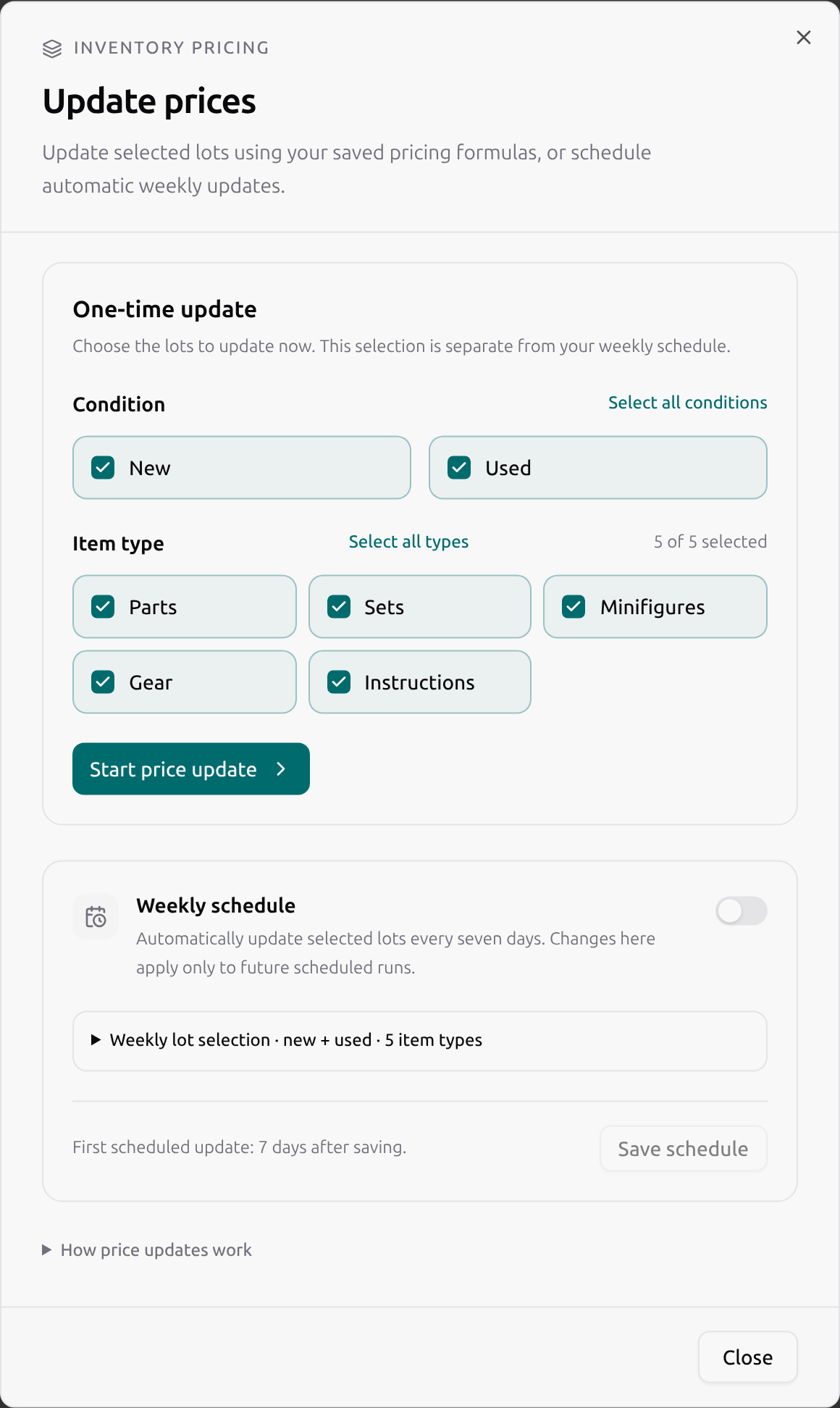
Click Start price update and let it run. You can close the dialog or leave the app. Reopen it to see how many lots have been checked, how many prices changed, and the progress of marketplace updates.
Prices change in the app as each batch finishes. With inventory sync enabled, changed prices are also sent to linked BrickLink lots and linked BrickOwl lots when BrickOwl is configured. You don’t have to wait for the entire scan to finish before those changes reach your stores.
Large inventories can take a while, sometimes days. Requests are paced, and the worker pauses when its recorded BrickLink usage reaches the safety budget. It resumes automatically when calls become available again.
You can stop an update from the dialog. Prices already applied stay in place; stopping doesn’t undo them.
Keep particular prices fixed
Some lots need a price you’ve chosen yourself. Enable the price lock in the lot’s Edit dialog to protect that price from automatic updates and other price changes while the lock is on.
The update also skips lots that were removed or edited after the run started. Marketplace repricing sends price changes only, so it doesn’t put sold quantities back into stock.
Set up a weekly run
The Weekly schedule section has its own lot selection. It can match your one-time update or cover a different part of your inventory, and you can configure it while an update is running.
Turn on the schedule, choose its conditions and item types, then click Save schedule. A newly enabled schedule first runs seven days after saving. To update prices today as well, start a separate one-time update.
Only one update runs per account at a time. If a weekly run comes due while another update is active, it waits. BrickLink Direct Edit also pauses background updates until you turn it off.
Update Prices and weekly scheduling require a paid Premium subscription. They’re available now from the Inventory page. If you try them and something is unclear, let me know through the app or the Facebook page.